
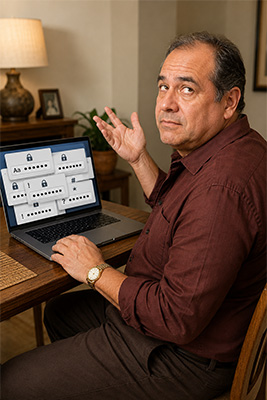
 Mention passwords and nearly every man I know rolls his eyes backward and screams. I do it myself. I hate the damn things.
We’re expected to create dozens of passwords, make every one different, remember which one belongs to which account, change them when something goes wrong, and somehow never forget one. Then a website tells you the password must contain an uppercase letter, lowercase letter, number, symbol, Egyptian hieroglyphic, and the blood type of your third-grade teacher.
All right, I may have exaggerated the last two, but that’s how it feels.
Men want a simple, easy-to-use method for passwords. We don’t want to write a college dissertation every time we create an account. We want to get in, do what we came to do, and get out.
Unfortunately, passwords protect our money, identity, medical information, tax records, business accounts, and private lives. We may hate them, but we can’t afford to treat them carelessly. So let’s keep this simple.
Protect Your Email First
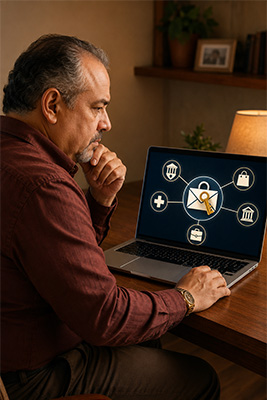 Your primary email account may be the most important account you own. Think about what happens when you forget a password. The website usually sends a reset link to your email. That makes your email account the master key to everything connected to it.
If someone gains control of your primary email, they may be able to reset passwords for your banking, shopping, social media, business, medical, and other accounts. That’s why your primary email needs a strong password that isn’t used anywhere else. Not almost the same password. Not the same password with a different number at the end. A completely separate password.
You should also keep the recovery information current. If the account still uses a telephone number you abandoned five years ago or an email address you no longer control, fix it. You don’t want to discover that problem after you’ve been locked out.
I also recommend keeping your main email address away from social media, dating sites, contests, mailing lists, and other places likely to create junk. Establish another email account for those activities.
Let your primary email do what it’s supposed to do. Use it for banking, important purchases, medical care, government accounts, trusted contacts, and business. Don’t invite every advertiser and stranger on the internet into the same inbox.
Stop Using One Password Everywhere
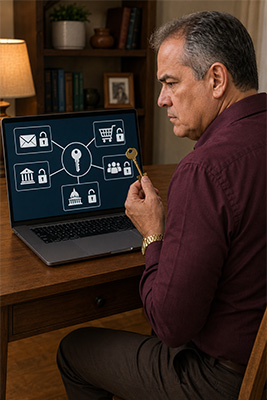 I understand why men reuse passwords. It’s easy. You create one password you can remember, use it everywhere, and eliminate the problem of keeping track of fifty different logins.
You also create one key that opens fifty different doors.
If one store, website, or service suffers a security breach, criminals may obtain the email addresses and passwords connected to it. They then test those same combinations on banks, shopping sites, social media, and email providers. They know people reuse passwords.
If the password for an unimportant account is also the password for your primary email or bank, one company’s security failure can become your personal disaster.
At the very least, use completely different passwords for your primary email; banking, credit cards, investments, and loans; tax, Social Security, Medicare, and other government accounts; online shopping accounts that store payment information; business accounts; and social media.
Everything doesn’t need to receive the same level of protection, but accounts capable of exposing your money, identity, or business should never share passwords.
Make Passwords Long Enough to Matter
A short password is easier to guess or crack. Length matters.
I use passwords that are at least twelve characters long. For highly important accounts, longer is better. Current security guidance often recommends sixteen characters, but I understand why many men take one look at that number and start swearing.
The easiest answer is to create something long enough to be useful but memorable enough that you don’t immediately forget it.
Avoid obvious information such as your name, birthday, address, telephone number, hometown, favorite team, children’s names, or pets. Much of that information may already be available through social media.
Don’t use passwords such as:
• Password123
• LetMeIn
• Qwerty
• Your name followed by the year you were born
• The name of the website followed by an exclamation point
Hackers aren’t sitting at a keyboard manually guessing one password at a time. Their systems test enormous collections of common words, names, dates, phrases, and predictable substitutions.
I have my own method for building passwords. I use memorable words, alter the spelling or use phonetic variations, and add numbers and special characters. I’m not going to reveal my exact formula because a private system stops being private the moment you publish the recipe.
Develop a method that makes sense to you, then keep the details to yourself. Don’t use examples from this guide as actual passwords. If thousands of people read the same example and copy it, it becomes another predictable password criminals know to test.
Let Your Browser Remember Them
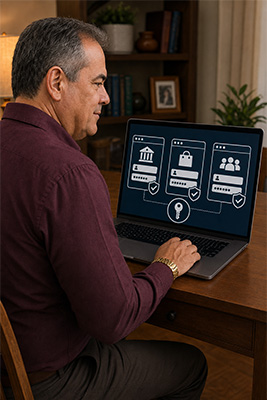 Most browsers ask whether you want them to remember a login. For many men, the browser’s built-in password manager may be the simplest system they’ll actually use.
Chrome, Edge, Firefox, Opera, and other major browsers can save passwords and fill them automatically when you return to a website. Some can also generate strong passwords so you don’t have to invent them yourself. That is far better than using the same password everywhere because it’s the only one you can remember.
One practical approach is to keep three or four browsers on your device and assign each one a specific job. Use one browser only for banking, credit cards, investments, taxes, and other serious financial matters. Use another for online shopping. Use another for social media, entertainment, and less important accounts.
I like the organization this creates. Your most sensitive accounts aren’t mixed into the same browser you use for wandering around social media and following unfamiliar links.
This separation isn’t a magic security wall. If the entire device becomes infected or someone gains access to an unlocked computer, every browser on it may be at risk. But an organized system is usually safer than passwords scattered everywhere with no plan whatsoever.
Protect the computer itself with a password, personal identification number, fingerprint, or facial recognition. If someone can open your device and view everything without proving who they are, the saved passwords aren’t receiving much protection.
Make Sure You Can Retrieve a Saved Password
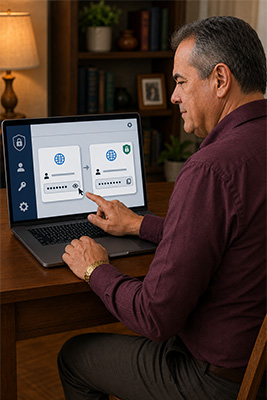 This is important. A browser may fill a password automatically for years. You see dots instead of letters, the account opens, and everything appears fine. Then the website requires your old password before allowing you to create a new one.
Now what?
If you don’t know the password and can’t retrieve it from the browser, you’re screwed.
Before trusting a browser to manage your passwords, learn how to view the saved logins. Go into the browser’s settings, find its password manager, and locate one unimportant account. Confirm that you can reveal the password.
Depending on the browser, you may need to enter your device password, personal identification number, fingerprint, Google account information, Microsoft account information, or a separate primary password. Learn how the system works before you need it.
Don’t rely on automatic filling alone. The browser should be able to show you the password when necessary, and you should know how to reach it.
If you synchronize browser passwords across several devices, protect the account handling that synchronization. Otherwise, someone who gets into that account may gain access to every password traveling with it.
What About Password Managers?
A dedicated password manager stores your logins in an encrypted vault. It can generate long, unique passwords and fill them across different browsers and devices. Instead of remembering fifty passwords, you remember one strong master password that opens the vault.
I understand the appeal. If a password manager created twenty-character passwords and entered them automatically everywhere, I wouldn’t have to remember any of them.
Products such as Bitwarden, 1Password, and Norton Password Manager are designed for that purpose. Some work with nearly every major browser and across computers, phones, and tablets.
I don’t currently use a dedicated password manager. I’m seriously considering one, but I’m not changing my entire password system in the middle of launching DougC. That would be like replacing the engine while driving to the launch.
Once things settle down, I may test one with a couple of unimportant accounts before entrusting it with email, banking, and the keys to the kingdom.
You don’t have to adopt one today either. The point is to understand that the option exists. If managing separate passwords has become impossible, a reputable password manager may simplify your life while improving security.
Two-Step Verification Is Irritating
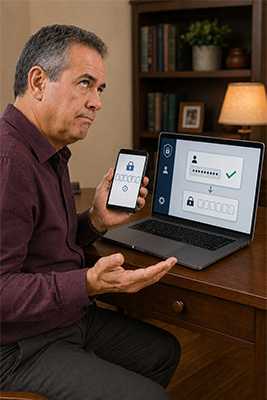 I despise two-step verification. I enter the correct password, and then the website makes me find my phone, unlock it, wait for a code, remember the code, and hurry back before it expires.
Bullshit. Why even have a password?
I avoid two-step verification where I reasonably can. However, there are certain accounts where the additional irritation is better than allowing a criminal through the door.
Use it for bank and credit-union accounts; credit cards, investments, loans, and any place where someone could obtain or borrow money in your name; tax records, Social Security, Medicare, and other government accounts containing sensitive information; and your primary email because that account may be able to reset everything else.
You don’t need to activate it on every meaningless account you own. I’m not retrieving a six-digit code to read a restaurant menu.
Use it where a breach could cost you serious money, expose your identity, or create a nightmare you’ll spend months correcting.
And never give a verification code to anyone who calls, texts, or emails you. If someone asks you to read a security code aloud, that person may be trying to enter your account while you unknowingly provide the final key.
Beware of Fake Login Pages
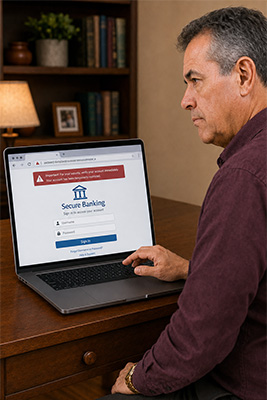 A fake login page may look identical to the real one. The company logo is there. The colors are right. The form looks familiar. You enter your username and password, but instead of logging into your account, you’ve handed the information directly to a criminal.
These pages often begin with a frightening message. Your account has been suspended. A payment failed. Someone logged in from another location. Your password expires today. Click here immediately.
I don’t log into important accounts through unexpected links. I open the company’s official application or type the known website address into the browser myself.
If your bank sends a message claiming something is wrong, don’t use the link in the message. Open the banking application you normally use or contact the bank through a number you independently verified.
A familiar logo proves nothing. Logos can be copied in seconds.
Never Share Your Password
No legitimate business needs you to tell an employee your password. Not your bank. Not your email provider. Not Microsoft. Not Facebook. Not the Internal Revenue Service. Not technical support.
A real employee may help you reset a password. They shouldn’t ask you to reveal the existing one.
Don’t send passwords through email, text messages, or social media. Don’t leave them taped to the monitor. Don’t store them in an ordinary document called “My Passwords” sitting on the desktop.
If someone claims to need your password to fix a problem, stop. The problem may be the person asking.
If an Account Is Compromised
Don’t panic. Move quickly and keep the response simple.
Use a device you trust and change the password for the affected account. If you reused that password anywhere else, change those accounts too. End other active login sessions if the account provides that option, then check whether the recovery email address or telephone number was changed.
Turn on two-step verification if the account involves money, identity, taxes, government information, or your primary email. Look for unfamiliar purchases, messages, forwarding rules, connected applications, or changes you didn’t make.
If money or payment information is involved, contact the financial institution directly. If strange messages were sent in your name, warn your contacts not to click links or send money.
Don’t pay a stranger who contacts you online and promises to recover the account. That may be another scam aimed at someone already in trouble.
Fingerprints and Passkeys Are the Future
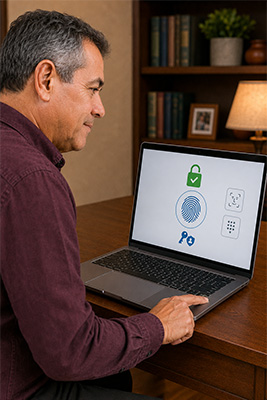 What I really want is simple. Give me a fingerprint scanner and let my fingerprint prove who I am.
That future is already arriving. Some websites now offer passkeys. Instead of entering a traditional password, you approve access using a fingerprint, your face, a device personal identification number, or another trusted method.
You don’t need to understand the machinery behind it. The important part is that passkeys can reduce the number of passwords you must create, remember, and type.
They aren’t available everywhere yet, so passwords won’t disappear tomorrow. But I think fingerprints, facial recognition, and passkeys are finally moving us toward the system men have wanted all along.
Prove who I am, let me in, and stop making the process more complicated than it needs to be.
Keep It Simple
Password security doesn’t require a college degree. Protect your primary email first. Use different passwords for accounts involving money, identity, business, shopping, and social media. Make passwords long enough to matter. Let a browser or reputable password manager remember them.
Confirm that you can retrieve saved passwords when necessary. Use two-step verification where serious money or identity information is involved. Never give anyone your password or a verification code.
That’s the system.
You don’t have to love passwords. I certainly don’t. You only have to keep them from becoming the weakest lock on your door.