
 Let’s have a conversation about the unpleasant things waiting for you on the internet and what you can do to keep them away from your devices.
You don’t need to understand computer programming to protect yourself from viruses and malware. You need to understand what they are, where they come from, and which ordinary decisions either keep the door locked or invite them inside.
Most of the criminals behind these attacks aren’t interested in destroying your computer merely for entertainment. They want something. Your passwords. Your email address. Your banking information. Your credit-card numbers. Access to your accounts. Sometimes they want to lock your files and demand money to release them. Other times, they want to watch what you do without you ever knowing they’re there.
That’s why this matters.
What Are Viruses and Malware?
People often use the words virus and malware as though they mean exactly the same thing. They don’t.
Malware is the broad term for software created to harm a device, steal information, spy on someone, disrupt normal operation, or gain access without permission. A virus is one particular kind of malware.
Think of malware as the entire criminal organization. A virus is merely one member of the gang.
A virus attaches itself to a file or program and spreads when that infected item is opened or shared. It may damage files, interfere with the computer, or help other malicious programs enter.
A Trojan horse pretends to be something legitimate. It may look like a useful application, an invoice, a security update, a game, or a document. You let it inside because you believe it’s harmless. Once opened, it reveals its real purpose.
Spyware secretly watches what you do. It may collect browsing activity, passwords, personal information, or other details without your knowledge.
A keylogger records what you type. That may include email messages, usernames, passwords, credit-card numbers, and banking information.
Ransomware locks your files or device and demands payment to restore access. Paying the ransom doesn’t guarantee that the criminal will return anything. You’re dealing with a thief, not a businessman concerned about customer satisfaction.
Adware floods the device with unwanted advertisements and may track browsing activity. Some adware is more irritating than destructive, but it can still create security and privacy problems.
A worm spreads between computers and networks with little help from the user. It searches for weaknesses and uses them to move from one device to another.
You don’t need to memorize every definition. The principle is what matters: malware comes in different forms, but none of it belongs on your device.
How Does It Get Inside?
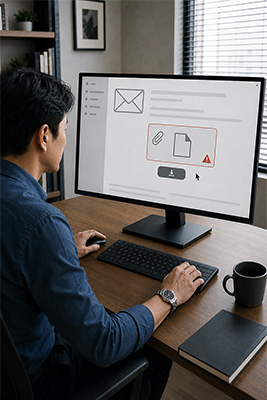 Criminals don’t always break through sophisticated security systems. Quite often, they persuade the owner to open the door.
An unexpected email attachment is one of the oldest examples. The message may claim to contain an invoice, receipt, shipping notice, legal document, photograph, or account statement. You open the attachment, and whatever was hiding inside gets its opportunity.
Malicious links work the same way. They can arrive through email, text messages, social media, advertisements, or private messages. The link may lead to a fake login page, an infected download, or a website designed to collect your information.
Downloads are another major source. Free software, pirated movies, counterfeit applications, unofficial games, and programs from unfamiliar websites may include something you never intended to install.
Fake updates are especially convincing. A message appears claiming that your browser, video player, computer, or security software is out of date. It provides a large button marked “Update Now.” Instead of updating anything, the button may install malware.
Real updates should come through the operating system, the application itself, or the company’s official website. A random webpage shouldn’t be making decisions about what your computer needs.
Browser extensions can also create trouble. An extension may promise coupons, faster searches, video downloads, price comparisons, or some other convenience. Once installed, it may track your activity, change your search engine, display advertisements, or collect information.
External drives can carry infected files from one computer to another. That includes USB drives, portable hard drives, and memory cards. If you don’t know where a device has been, don’t assume it’s safe merely because it fits into the port.
Then there are fake technical-support warnings. A frightening message fills the screen and claims your computer has been infected. It provides a telephone number and tells you to call immediately.
Don’t call it.
The person answering may ask for remote access to your computer. Once given access, that stranger can view files, install software, collect information, or manufacture a problem and charge you to “repair” it.
Microsoft, Apple, Norton, your bank, and the federal government are not sitting around watching your computer in real time, waiting to telephone you because they noticed something suspicious.
Danger Doesn’t Always Look Dangerous
Wanting to remain current on fashion, sales, and new jewelry means I follow a lot of links to unfamiliar websites.
In case you don’t know, scammers love creating fake sites that mimic legitimate ones. They hope to collect your personal information, steal your payment details, or give your computer a nasty little present on the way out.
 Think of getting crabs: you can’t always recognize the danger by appearances.
A fraudulent website may look polished. It may display professional photographs, familiar logos, convincing product descriptions, and an attractive sale. It can imitate a company you already know and trust.
The address may differ from the legitimate company’s address by only one letter. The logo may be copied perfectly. The merchandise may not exist at all.
That’s what makes these sites dangerous. If every criminal website looked as though it had been assembled in a basement by an idiot, avoiding them would be easy.
My security software, Norton 360, has warned me about dangerous websites before they loaded and blocked me from entering them. Thankfully, I didn’t have to discover the danger after the damage was done.
Security software provides another set of eyes, but you still need to use your own.
If It Seems Too Good to Be True
 There’s an old saying: “If it seems too good to be true, it probably is.”
How can you win a contest you never entered? Why would a store you’ve never visited suddenly invite you back and offer you fifty percent off?
Common sense should always prevail, and in my case, it most certainly does.
These offers aren’t sent because a stranger woke up feeling generous. The people behind them may want to install malware, direct you to a fraudulent website, or collect your personal information. They’re especially interested in email addresses, passwords, credit-card numbers, and banking information.
Even legitimate stores may offer ten percent off if you join their mailing list. Read what you’re agreeing to before handing over your information. Some businesses will send you cans and cans of SPAM, and depending on their privacy policy, your information may also be shared with marketing partners.
Me? I’ll pay full price. Saving ten percent once isn’t worth opening my inbox tomorrow and finding hundreds of emails I never wanted.
Before following an offer, ask yourself three questions:
• Did I request this?
• Does the offer make sense?
• Do I trust the source?
If any answer is no, leave it alone.
Simple Ways to Protect Yourself
Keep your operating system, browser, telephone, tablet, and applications updated. Updates don’t exist solely to add features or move buttons around just when you finally learned where everything was. Many updates repair security weaknesses criminals already know how to exploit.
Whenever practical, allow important security updates to install automatically.
Download programs and applications only from official stores, trusted companies, or the developer’s legitimate website. If you have to search through six questionable download buttons to find the correct one, you may already be somewhere you shouldn’t be.
Don’t open an attachment merely because it arrived. Ask whether you know the sender, expected the file, and have a sensible reason to open it.
Be especially careful with files claiming to be invoices, shipping notices, legal documents, tax information, or financial statements. Fear and urgency are two of a scammer’s favorite tools.
Keep the firewall enabled. A firewall helps control unwanted communication between your device and the outside world. You don’t need to understand how it performs that job. You need to avoid switching it off because some questionable program told you to.
Remove browser extensions and applications you no longer use. Every unnecessary program creates one more thing that must be updated and one more possible place for trouble to develop.
Back up important photographs, documents, business files, and financial records. A backup should exist somewhere separate from the device. If ransomware locks the computer and every backup permanently connected to it, you may discover that your backup was taken hostage too.
Use strong, unique passwords and additional login verification whenever it’s available. We’ll cover that subject fully in our guide about password and account security.
Never give remote control of your computer to an unsolicited caller or someone connected to a frightening pop-up. If you genuinely need technical help, contact a company or professional you selected through a telephone number or website you independently verified.
And don’t install several antivirus programs because you assume more must be better. Multiple programs attempting to perform the same job can conflict, slow the computer, or interfere with one another.
Choose one primary security system and keep it active and updated.
Your Phone and Tablet Need Protection Too
Some men still think viruses and malware are exclusively computer problems. They aren’t.
Phones and tablets contain email, photographs, contacts, saved passwords, banking applications, shopping accounts, medical information, and private conversations. For many people, the telephone now contains more valuable personal information than the computer.
Malicious applications, deceptive text messages, fake login pages, dangerous links, and stolen account information can all affect mobile users.
Download applications through the device’s official app store. Review what an application wants permission to access. A flashlight application shouldn’t need your contacts, microphone, photographs, location, and permission to manage your finances.
Be suspicious when an application requests access that has nothing to do with its purpose.
No device connected to the internet is magically immune. Different devices face different threats, but they all require judgment.
Warning Signs Something May Be Wrong
A device suddenly becoming slow doesn’t automatically mean it has a virus. Computers and phones slow down for many perfectly ordinary reasons. Storage may be full, an update may be running, or too many applications may be open.
However, several unusual changes appearing together deserve attention.
Unexpected pop-ups may appear. Your browser’s homepage or search engine may change. New programs or extensions may show up without explanation. Security protection may be disabled. Files may disappear, change names, or refuse to open.
The device may run hot when you aren’t doing anything demanding. The camera or microphone may activate unexpectedly. Friends may receive strange messages from your accounts. You may be redirected to unfamiliar websites or repeatedly see advertisements you can’t close.
Ransomware is usually less subtle. It may lock your files or display a demand for payment.
Don’t panic, but don’t ignore what you’re seeing.
What to Do If You Suspect an Infection
Stop using the affected device for banking, shopping, or entering passwords.
If files are being changed, locked, or deleted, disconnect the device from the internet and from other devices or external drives. That may help limit further damage.
Run a complete scan using your security software. Follow its instructions for isolating or removing anything it finds.
Change important passwords from another device you have good reason to believe is clean. Begin with email, banking, financial accounts, and any account that stores payment information.
Check those accounts for unfamiliar activity.
If the infection is beyond your ability, get professional help. Choose the technician yourself. Don’t hire the stranger whose telephone number appeared in the warning that frightened you.
Sometimes repairing a badly infected computer requires erasing it and restoring everything from a clean backup. That is inconvenient, but it’s better than leaving criminals with continued access.
If banking or identity information may have been exposed, contact the financial institution directly using the number printed on your card, statement, or verified official website.
Built-In Protection and Trial Offers
Most new computers include built-in security. A new machine may also arrive with a trial offer for a commercial security package, but very few include one or two full years of paid third-party protection.
When the trial ends, you have a decision to make.
Modern Windows computers include Windows Security, Microsoft Defender Antivirus, a firewall, and other built-in safeguards. For a careful user who keeps everything updated and practices sensible online behavior, that protection may be adequate.
But “adequate” and “the level of protection I personally want” aren’t necessarily the same thing.
A commercial package may protect several kinds of devices through one account. Depending on the package, it may add protection against fraudulent websites, suspicious messages, ransomware, identity theft, unwanted tracking, and other online threats. Some packages also include a password manager, a virtual private network, identity monitoring, or direct technical assistance.
Before purchasing anything, find out exactly what is included. Look at the number of devices covered, the introductory price, the renewal price, automatic-renewal terms, customer support, and whether the features you want are included or cost extra.
Don’t buy a package because a frightening advertisement told you disaster was seconds away. Buy it because you understand what it provides and believe the protection is worth the cost.
Why I Use Norton 360
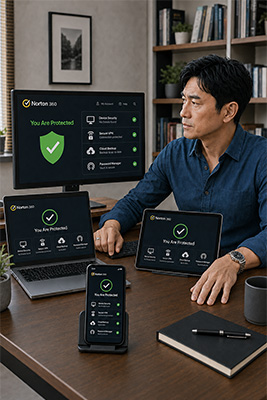 I have used Norton for approximately ten years and haven’t had a virus or malware problem during that time. I use it on my desktop, laptop, phone, and tablet.
It has warned me about dangerous websites and prevented me from opening pages that could have caused trouble. I can’t personally compare every security product available, but Norton 360 is the best one I have used.
Yes, Norton can be expensive, but protecting all my devices and having that peace of mind is well worth the cost to me.
I’m not being paranoid when I say this. I’m a successful online entrepreneur, and I have enemies who would love nothing more than to disrupt my business or put me out of it.
That’s why I rely on the best online protection I can get. In my experience, that is currently Norton 360.
You may choose something else. That’s fine. The important thing is that you understand what is protecting your devices, keep that protection active, and don’t assume a security program can replace common sense.
Security software can lock the front door, inspect what tries to enter, and warn you when danger is nearby. It cannot completely protect a man determined to climb through every window.
Keep your devices updated. Be careful what you download. Question unexpected messages. Stay away from offers that make no sense. Back up what matters. Use reputable security protection and pay attention when it warns you.
Viruses and malware don’t need to frighten you.
They need you to stop thinking.
Don’t make their job easy.